
If you’re looking for information on how to embed your Chatwith Agent in your Bubble website, you’re in the right place! Here’s how to add Chatwith to a Bubble website with Chatwith.
Add your agent to your Bubble website
Adding your agent to your website can be done in two steps that take just a minute!
In the Chatwith dashboard
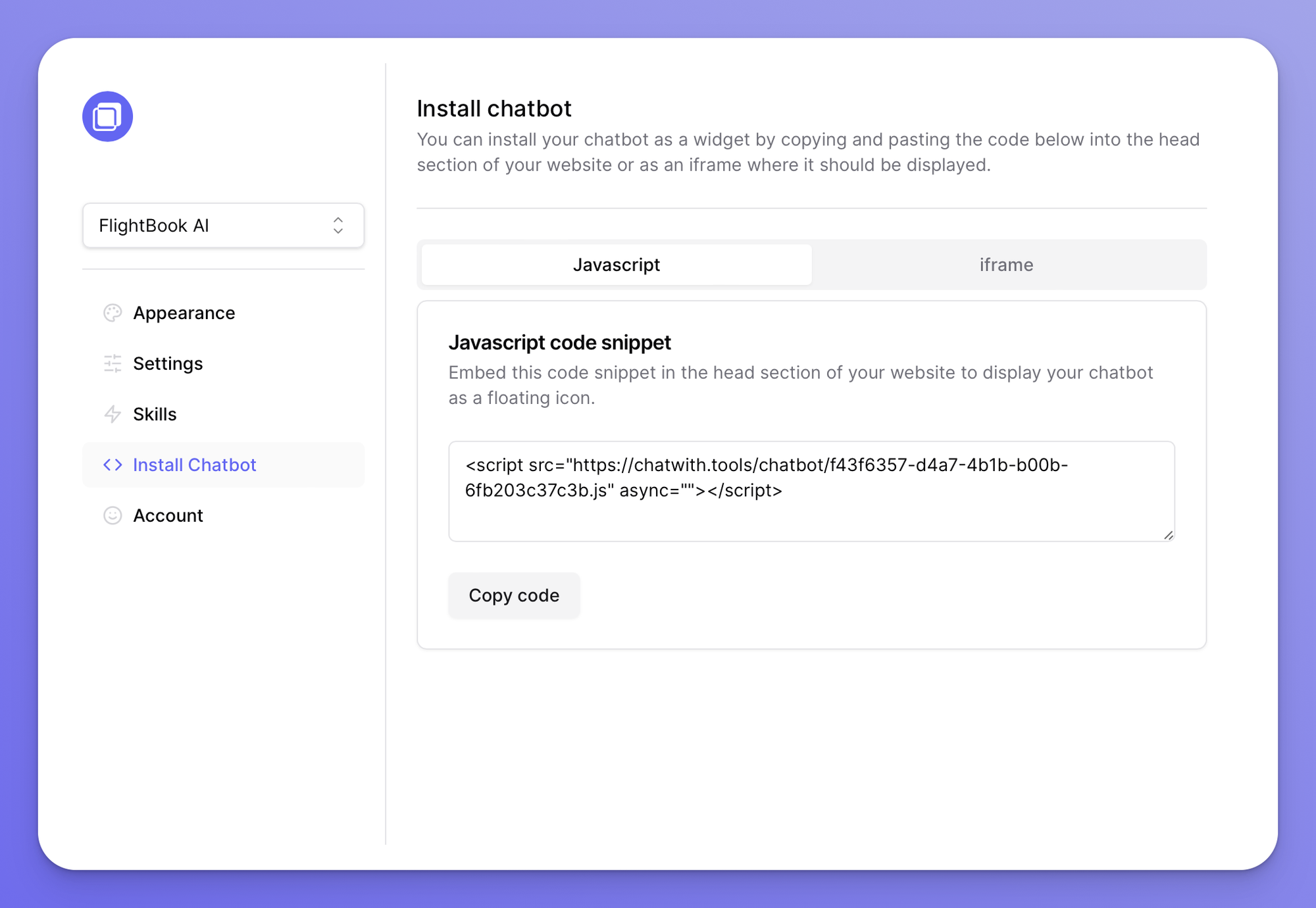
Select your agent from the dropdown menu at the top, click on the Install agent section in the sidebar, then click on the Copy code button to copy your code snippet.
In Bubble
- Go to the Bubble page where you want to add your agent.
- Click HTML on the menu
- Paste your code
- Close the code tool
- Save the page and click Preview
What is Bubble?
Bubble is a visual programming platform that allows you to build web applications without writing code. It offers a drag-and-drop interface for designing your application and a backend for managing data, making it an accessible tool for both beginners and seasoned developers.
Why add Chatwith to Bubble?
Adding a custom GPT to Bubble can greatly enhance the user experience on your site. It can provide instant, automated responses to user queries, guide users through your site, and offer personalized suggestions based on user input. It's a powerful tool for increasing user engagement and satisfaction.
In addition to enhancing user engagement, incorporating a GPT model can also streamline your customer service operations. It can handle a large volume of user queries, freeing up your team to focus on more complex issues. This results in more efficient service and improved customer satisfaction.